VR Setup with OpenKneeboard (deprecated)
Deprecated
Since Enduro Manager 0.9 the app draws its overlays in the headset by itself. OpenKneeboard is not needed anymore, and this method will be removed in a later version.
Use the VR enabled switch at the top of the Overlays section in the app instead, and place the overlays with VR placement, the gear next to it.
Follow this guide only as a fallback: it applies while that switch is off (it reads VR disabled).
The Enduro Manager fuel overlay is compatible with VR via OpenXR, using the free app OpenKneeboard.
The VR version of the overlay is minimalist — designed to give you the essentials without visual overload: live fuel usage, full laps remaining after the current lap, and optionally the fuel target to extend your stint by +1 lap.
What you need
- OpenKneeboard 1.12 or later — free, open source. Download from openkneeboard.com
- Enduro Manager App - free Download here
- A VR headset already configured to run iRacing - with iRacing set to use OpenXR (most headsets) or CloudXR (Apple Vision Pro). Refer to your headset's documentation
Step 1
Setup OpenKneeboard
You first need to install OpenKneeboard and confirm that you can see it in VR in iRacing. This part is independent from Enduro Manager.
1
Install OpenKneeboard
Run the installer you downloaded from openkneeboard.com, then open OpenKneeboard.
2
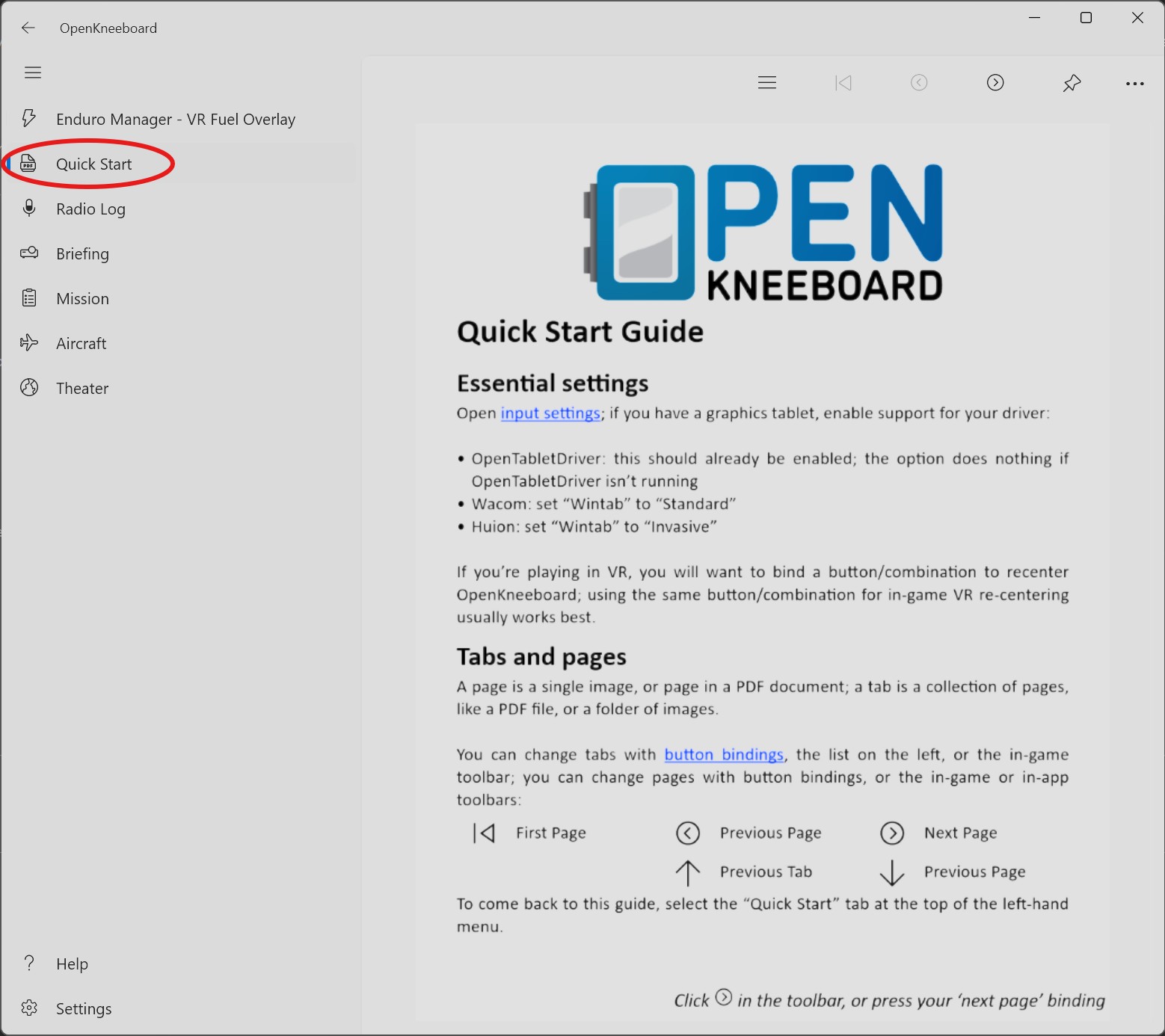
Open the Quick Start tab
In OpenKneeboard's left sidebar, click Quick Start.
3
Start iRacing and look at your VR view
Launch iRacing and put on your VR headset. The OpenKneeboard Quick Start page should appear floating in front of you. You don't need to enter into the car, the page should be visible from the iRacing main screen.
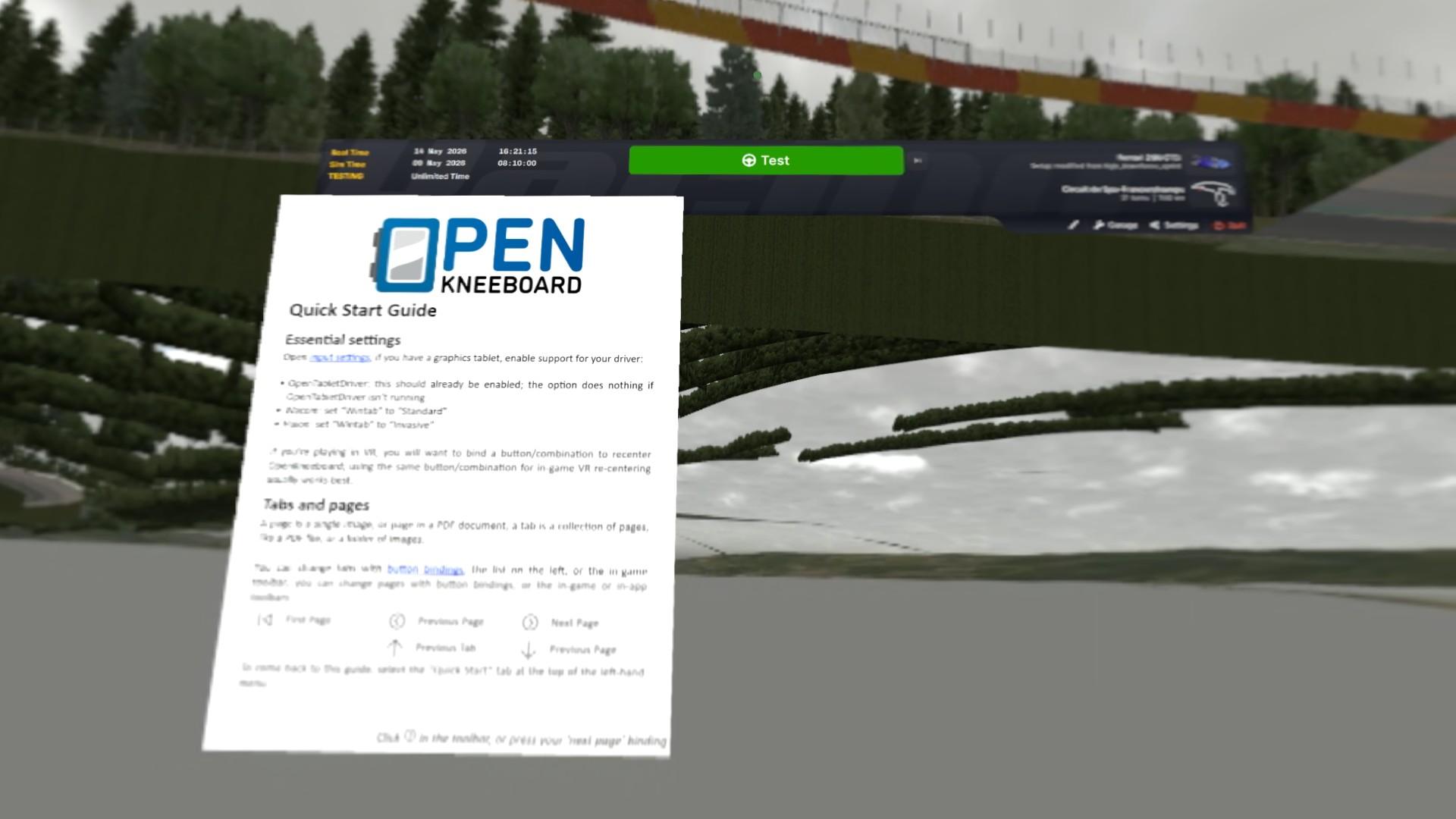
Can you see the Quick Start page floating in VR?
YES: OpenKneeboard is working with your VR headset. Continue to Step 2 below to set up the Enduro Manager fuel overlay.
NO: there is an issue with your OpenKneeboard / VR / OpenXR / iRacing setup, which is independent from Enduro Manager. Do not continue to Step 2. A few things to try:
- Uninstall and reinstall OpenKneeboard, then redo the steps above.
- Search online for specific resources to setup OpenKneeboard for your specific headset model.
- See openkneeboard.com for the official documentation and troubleshooting.
- Join the OpenKneeboard Discord to get support from the OpenKneeboard community.
- Join the Enduro Manager Discord (link coming soon) and ask in #need-help.
Step 2
Enable the Enduro Manager plugin
1
Launch / restart Enduro Manager and OpenKneeboard
If Enduro Manager was already running when you installed OpenKneeboard, quit Enduro Manager.
Quit OpenKneeboard.
Start Enduro Manager. It automatically registers an OpenKneeboard plugin.
Start OpenKneeboard. It will automatically load the Enduro Manager plugin.
2
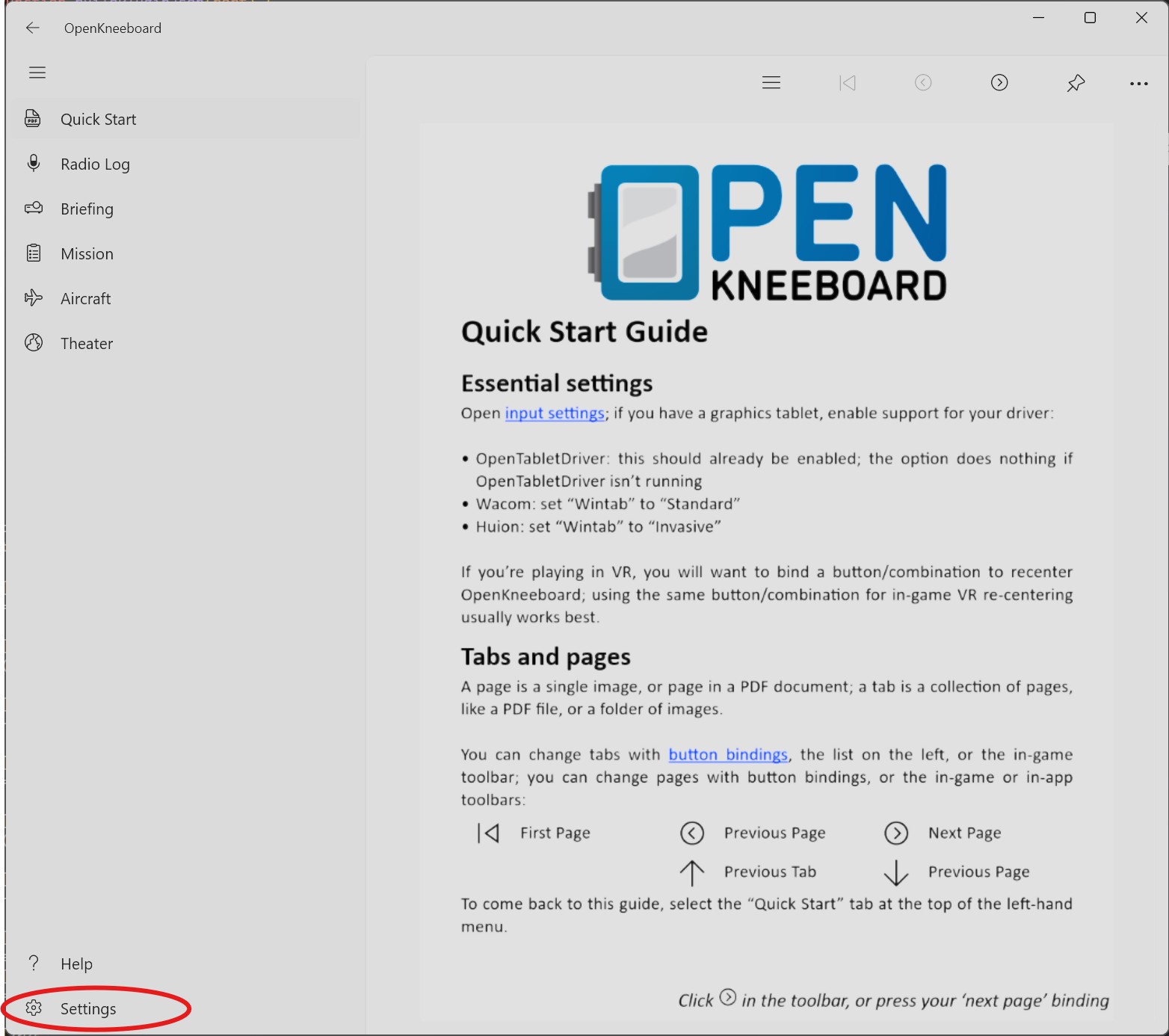
Open the Settings screen
Click on "Settings" at the bottom-left of the OpenKneeboard window.
3
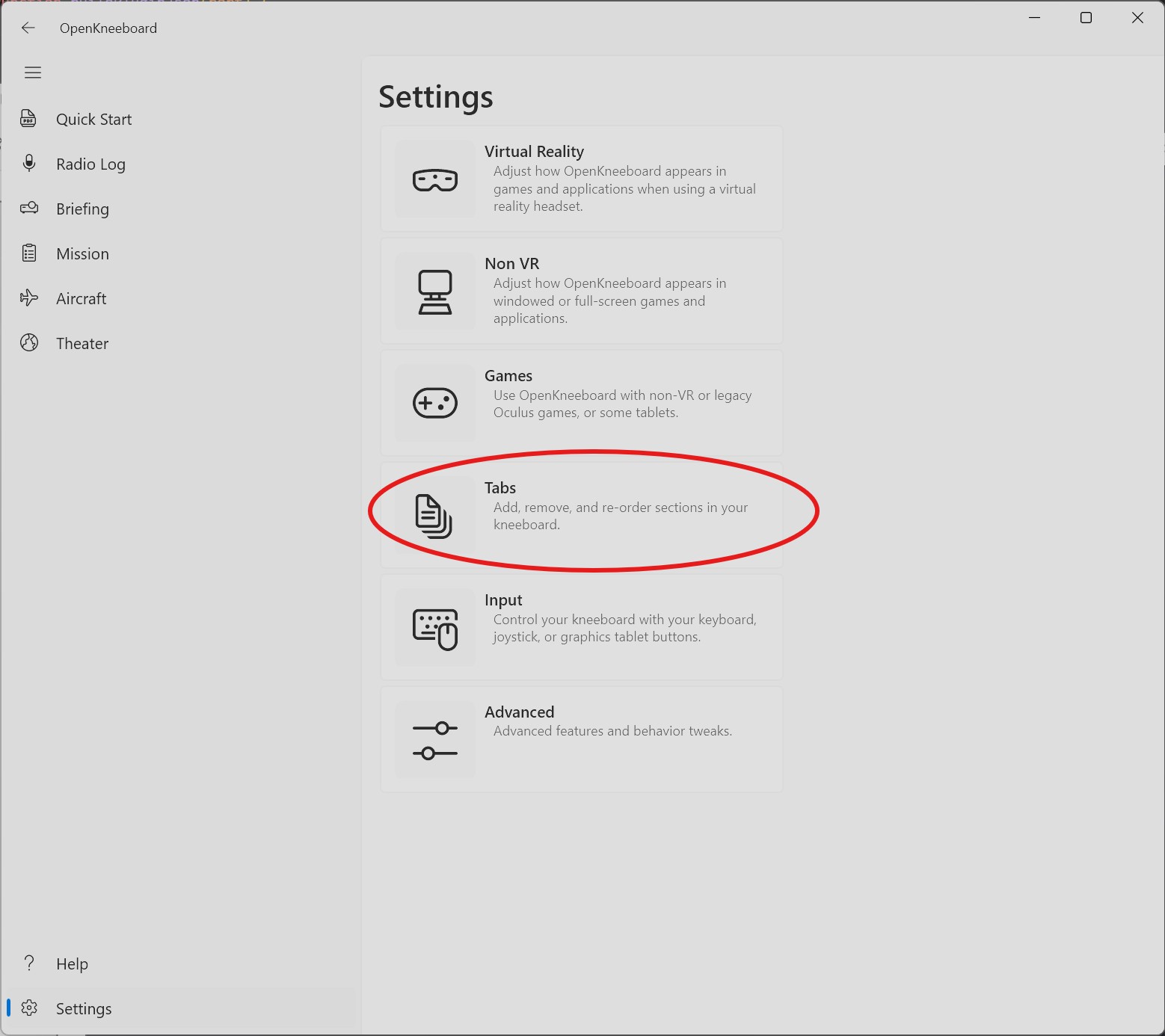
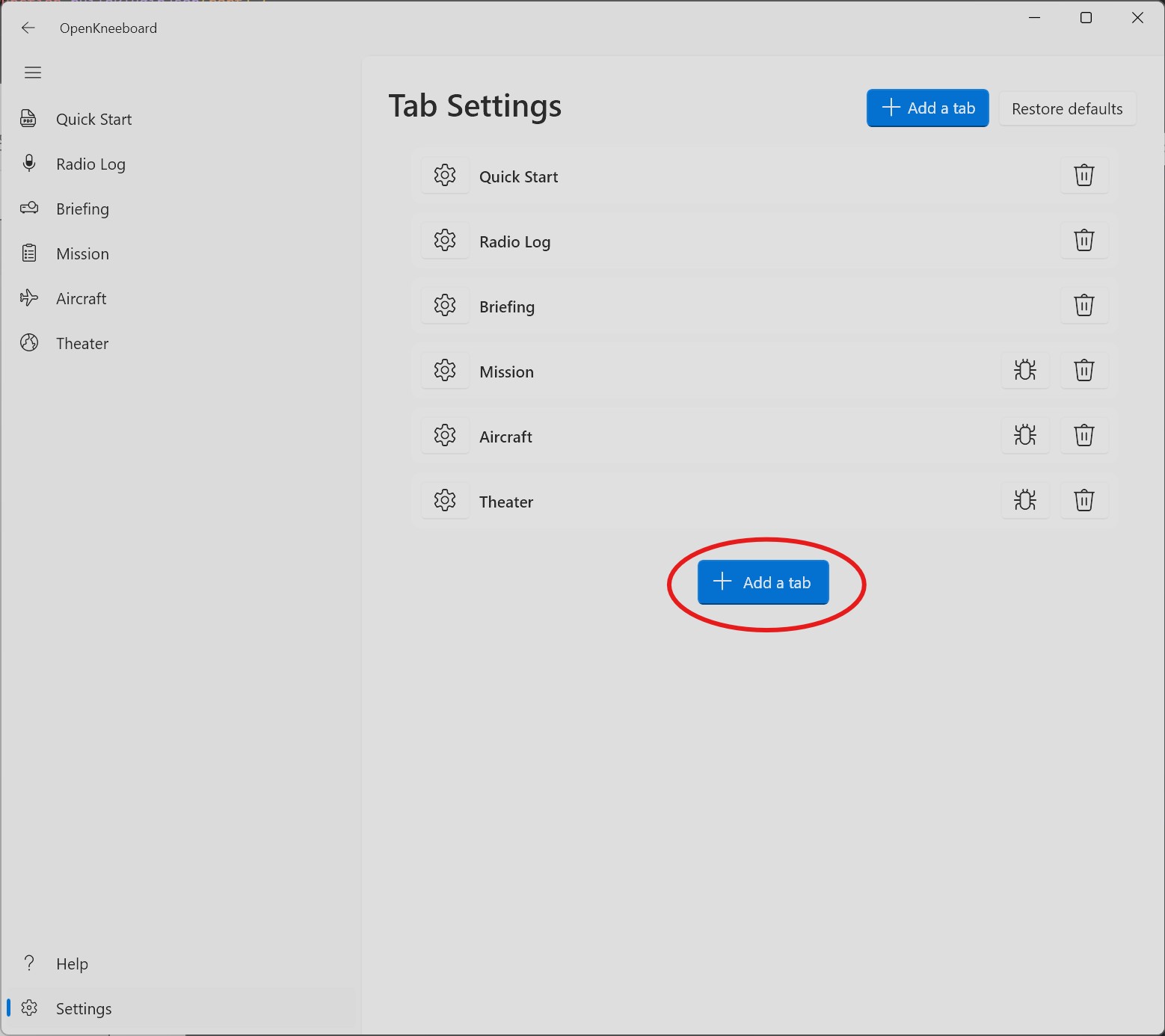
Open the Tabs section
4
Click Add a tab
5
Pick Enduro Manager – VR Fuel Overlay
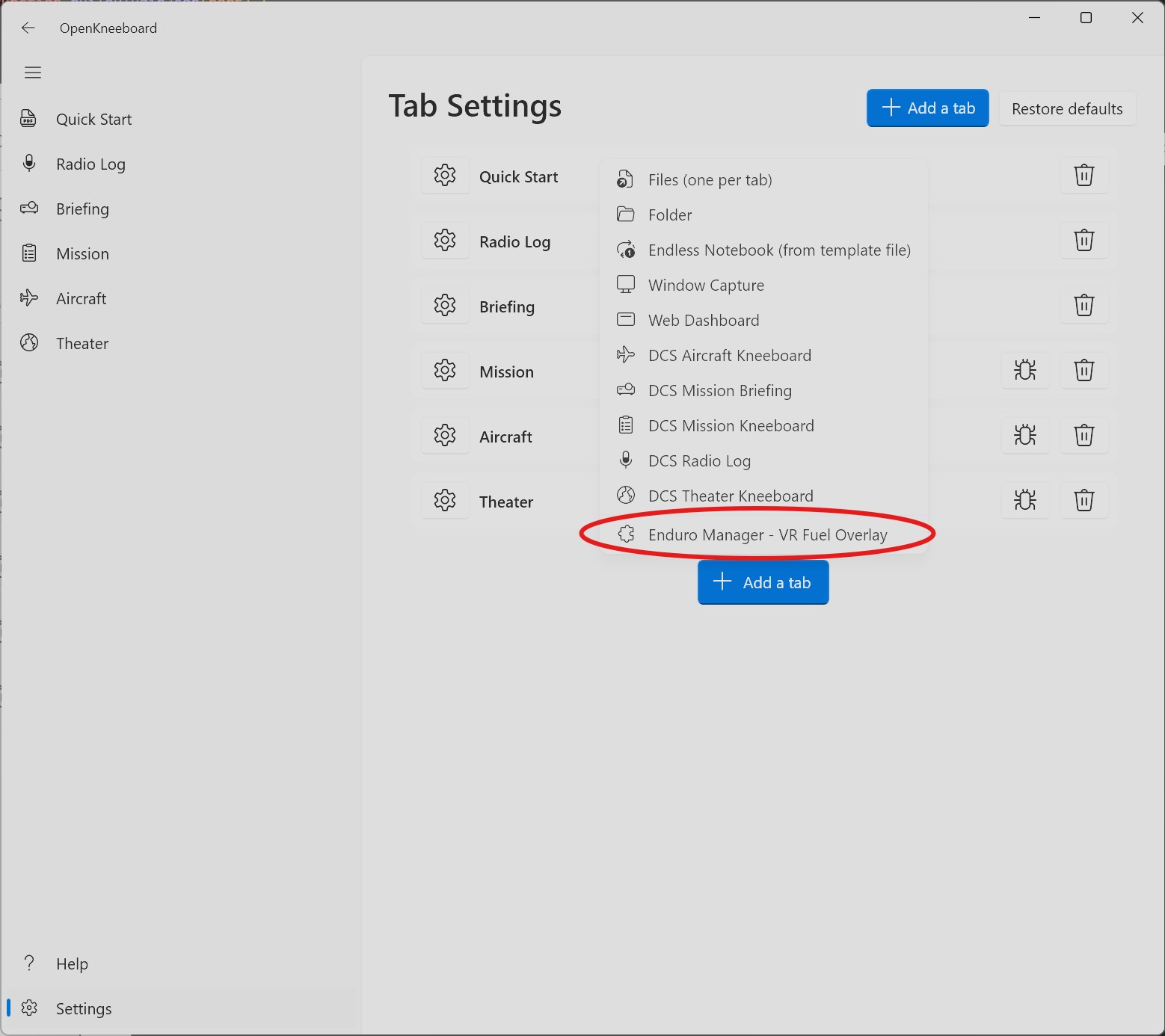
Don't see it? Restart Enduro Manager, then restart OpenKneeboard.
6
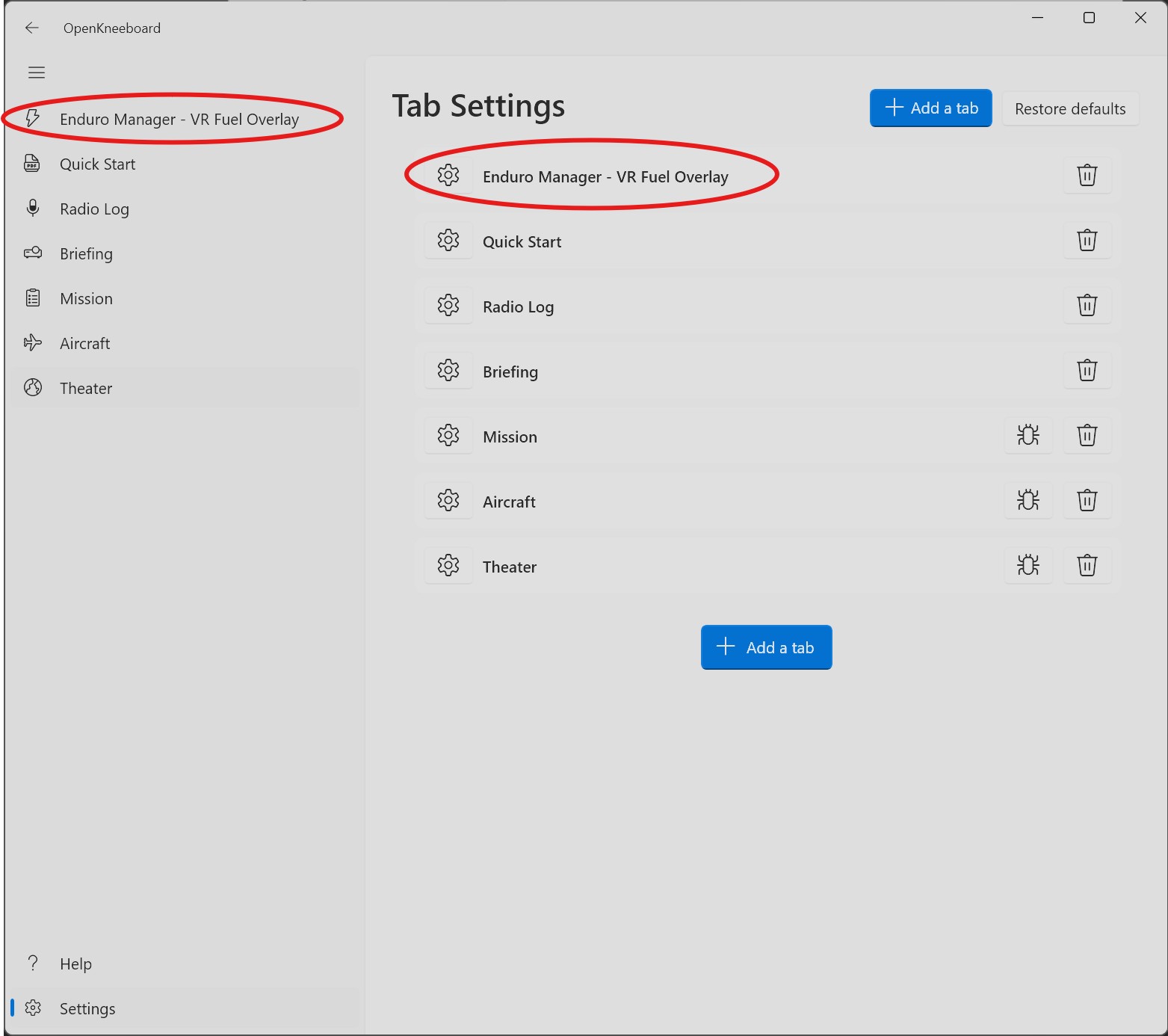
Confirm the tab was added
Enduro Manager - VR Fuel Overlay should now appear at the top of your tab list and in the left sidebar.
Step 3
Configure OpenKneeboard
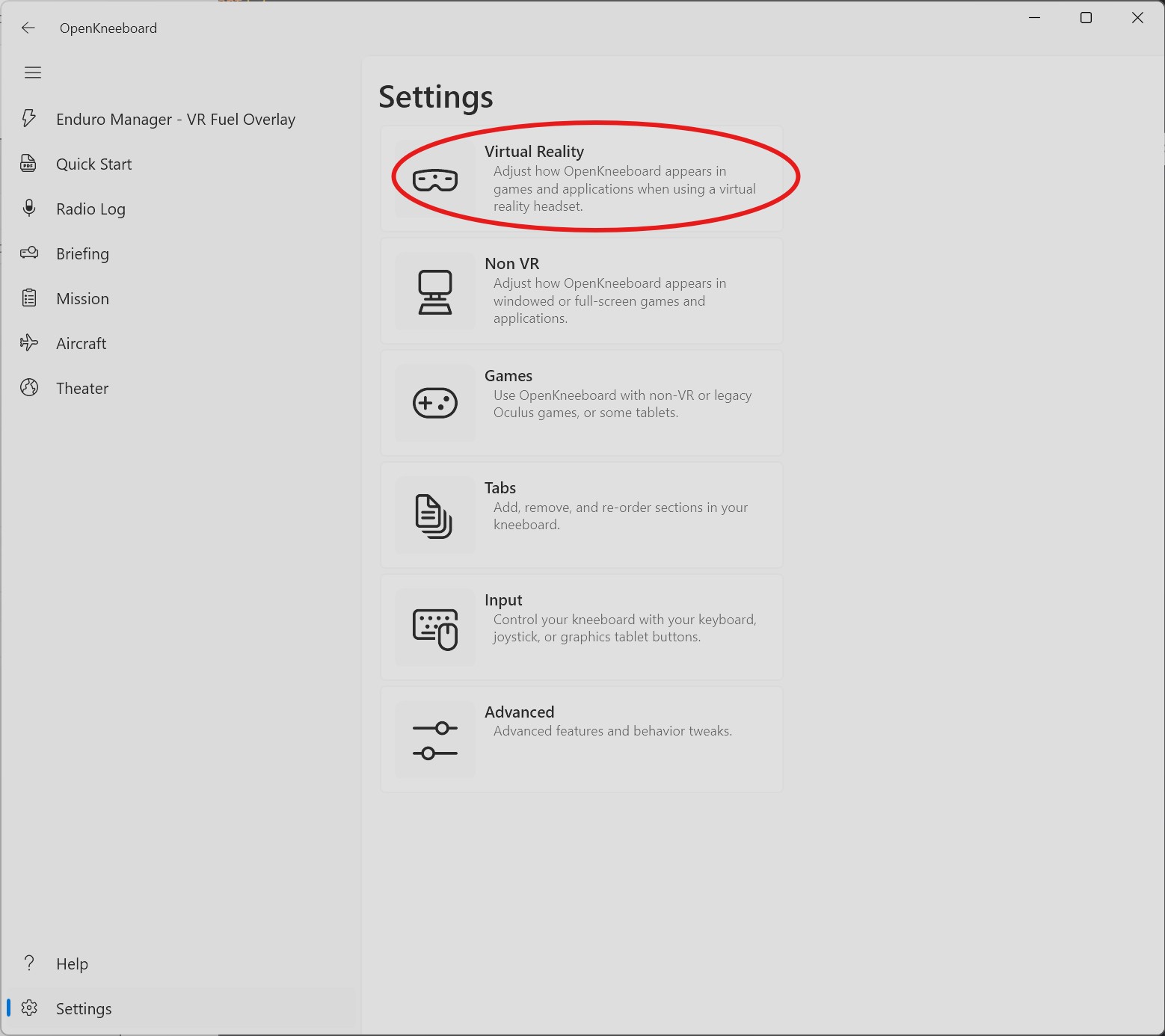
1
Open Settings and click on Virtual Reality
2
Enable Kneeboard in VR
Under System, make sure that OpenXR support is enabled.
Under Views → Kneeboard 1, make sure Enabled in VR is on.
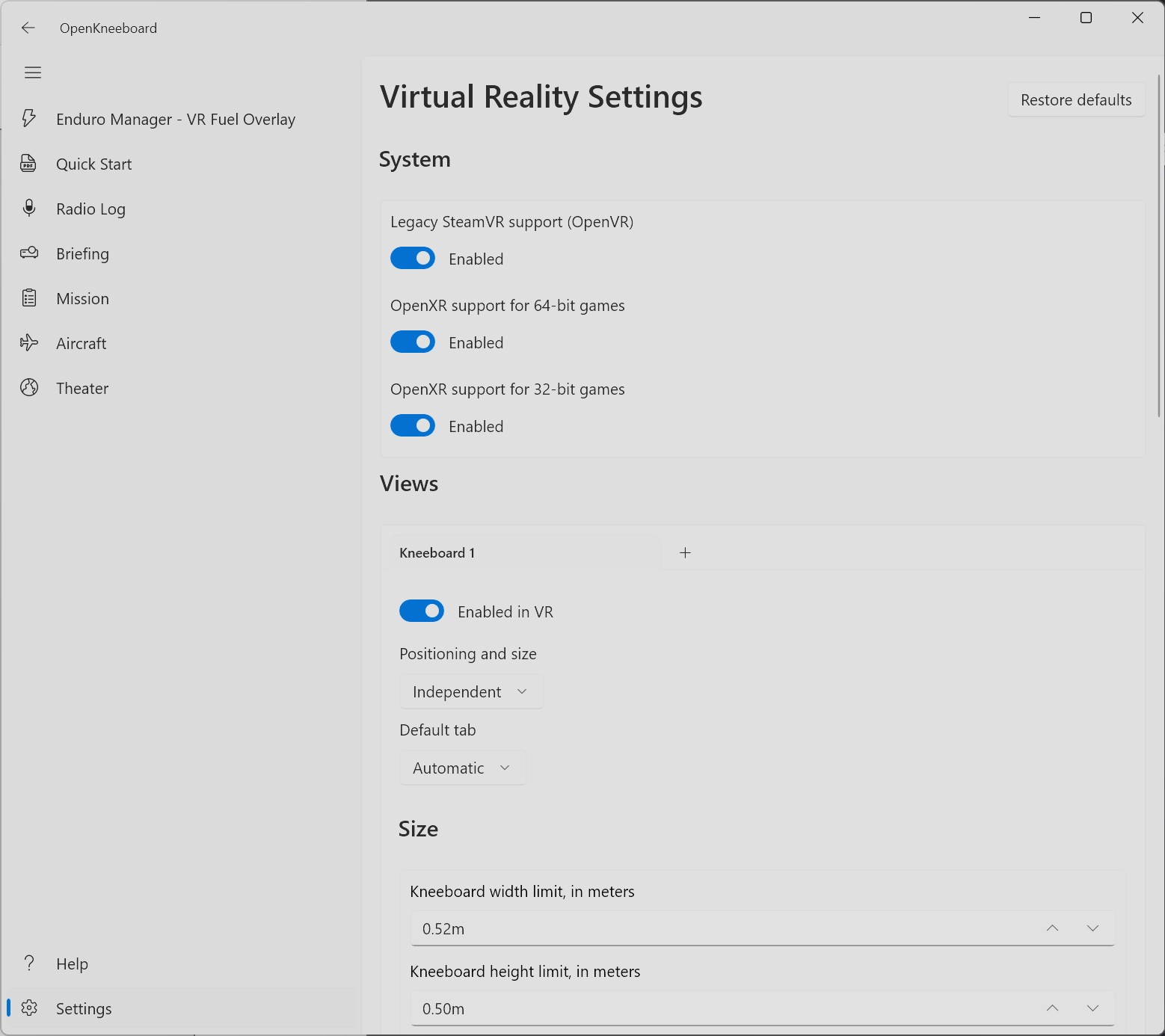
This assumes this is your first OpenKneeboard view / tab. If you already use OpenKneeboard with other tabs / views, adapt the setup to your usage.
3
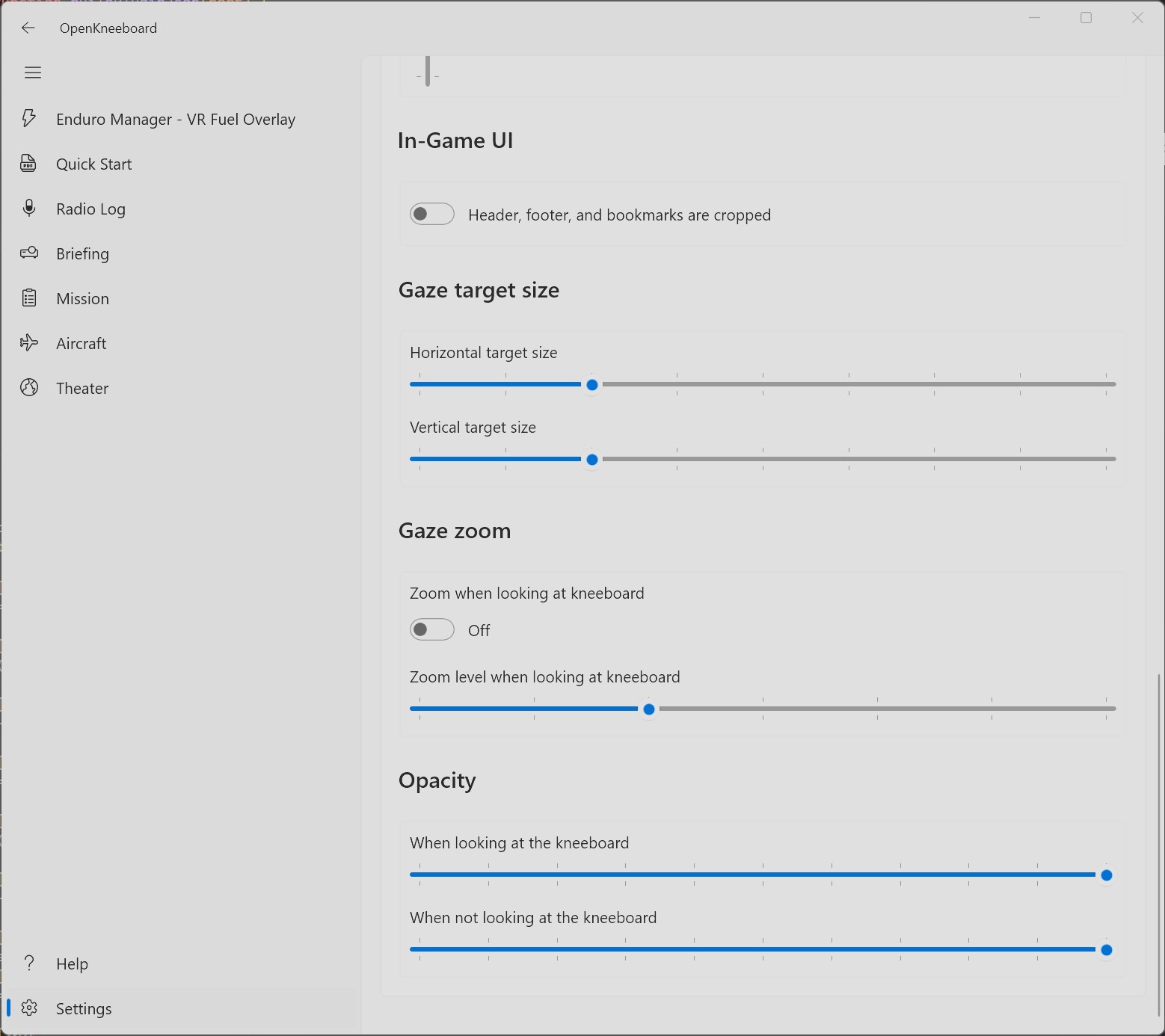
(Optional) Disable gaze zoom
We recommend disabling gaze zoom — otherwise the overlay resizes when you look at it, which is distracting while driving.
4
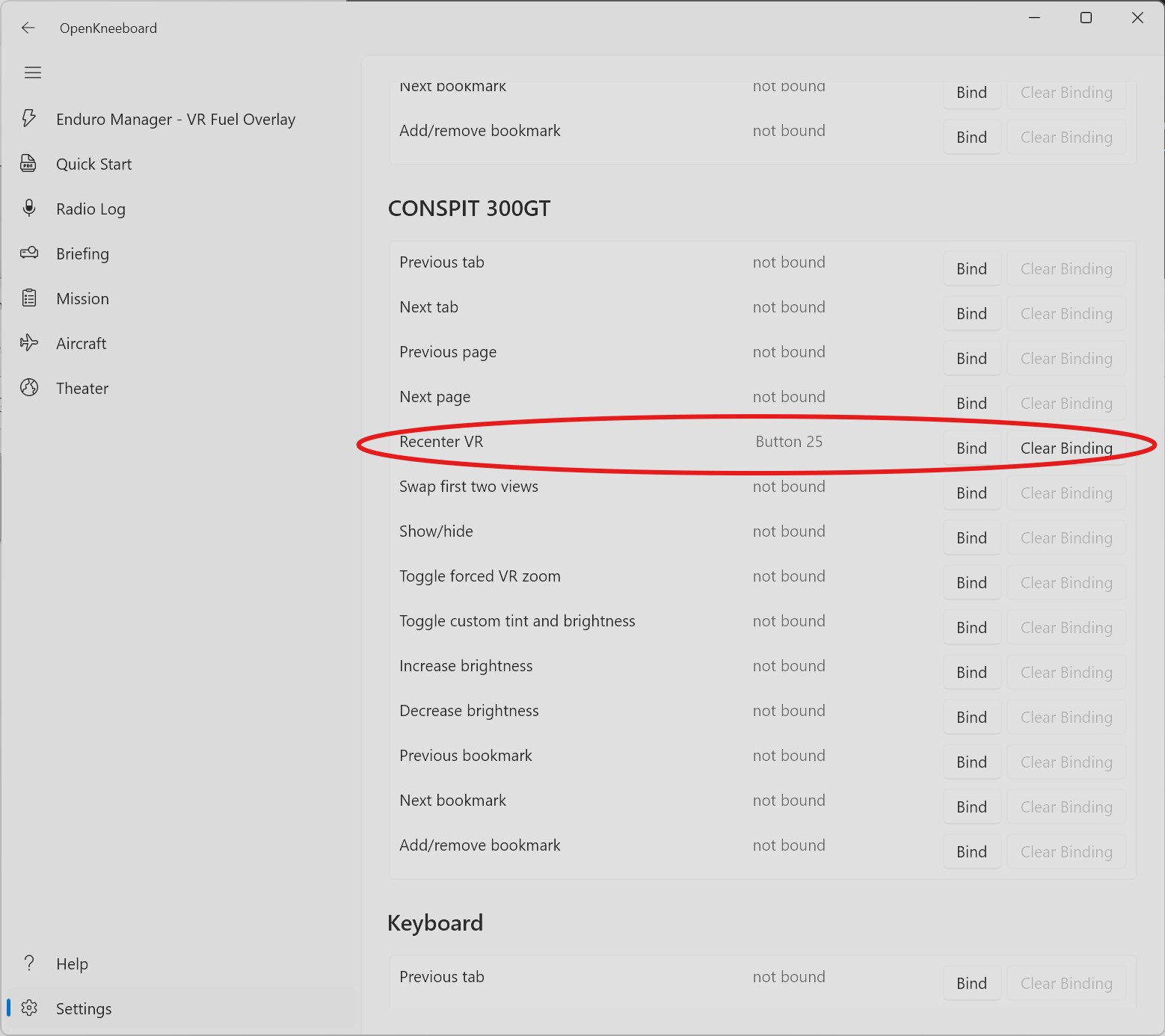
(Recommended) Bind a button to Recenter VR
Bind the same button to OpenKneeboard's Recenter VR and iRacing's Recenter VR view command — one press then resets both the kneeboard plane and your iRacing view together.
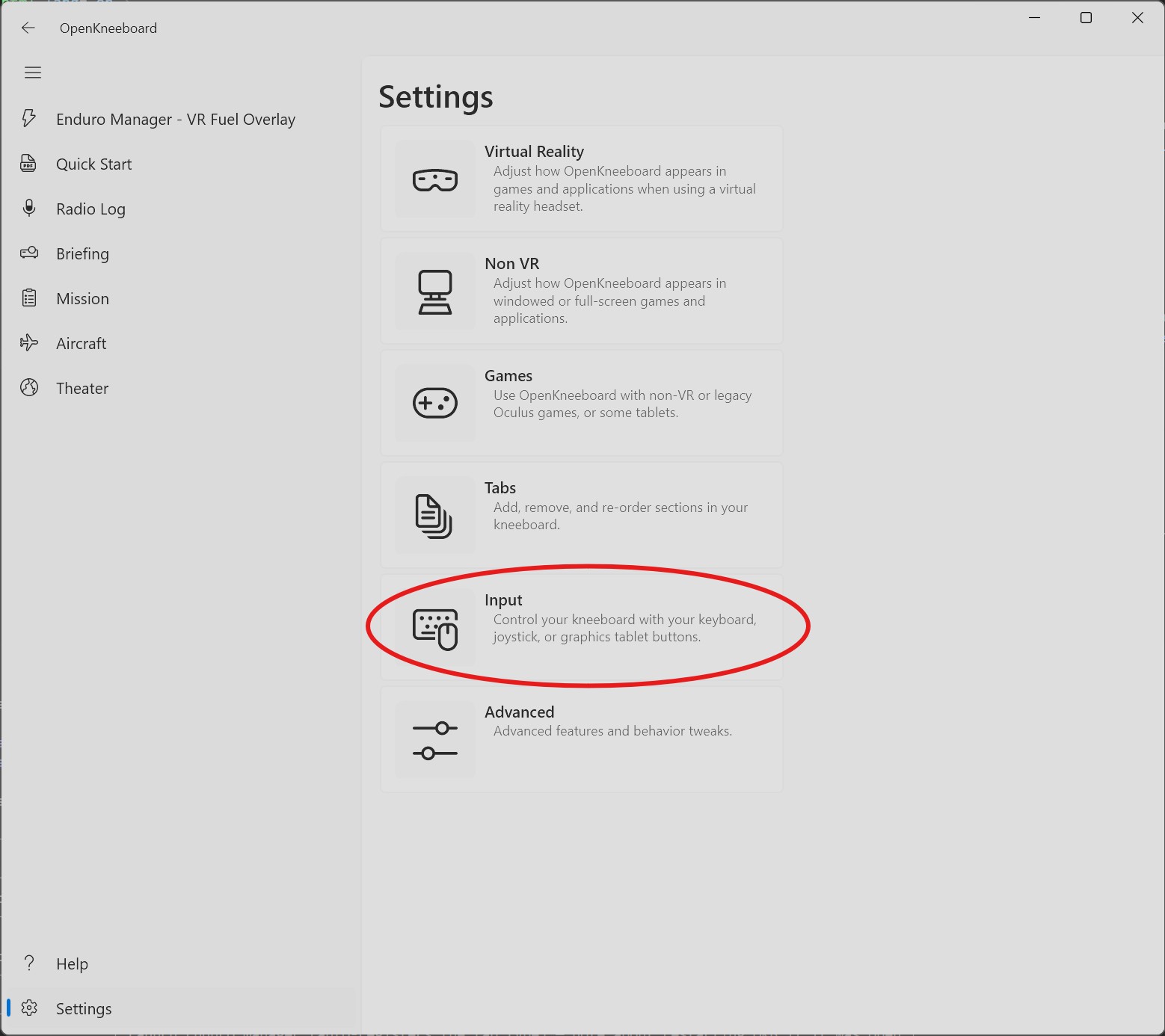
Open Settings → Input:
Find your input device, and assign the same button you have bound for Recenter VR view in iRacing.
5
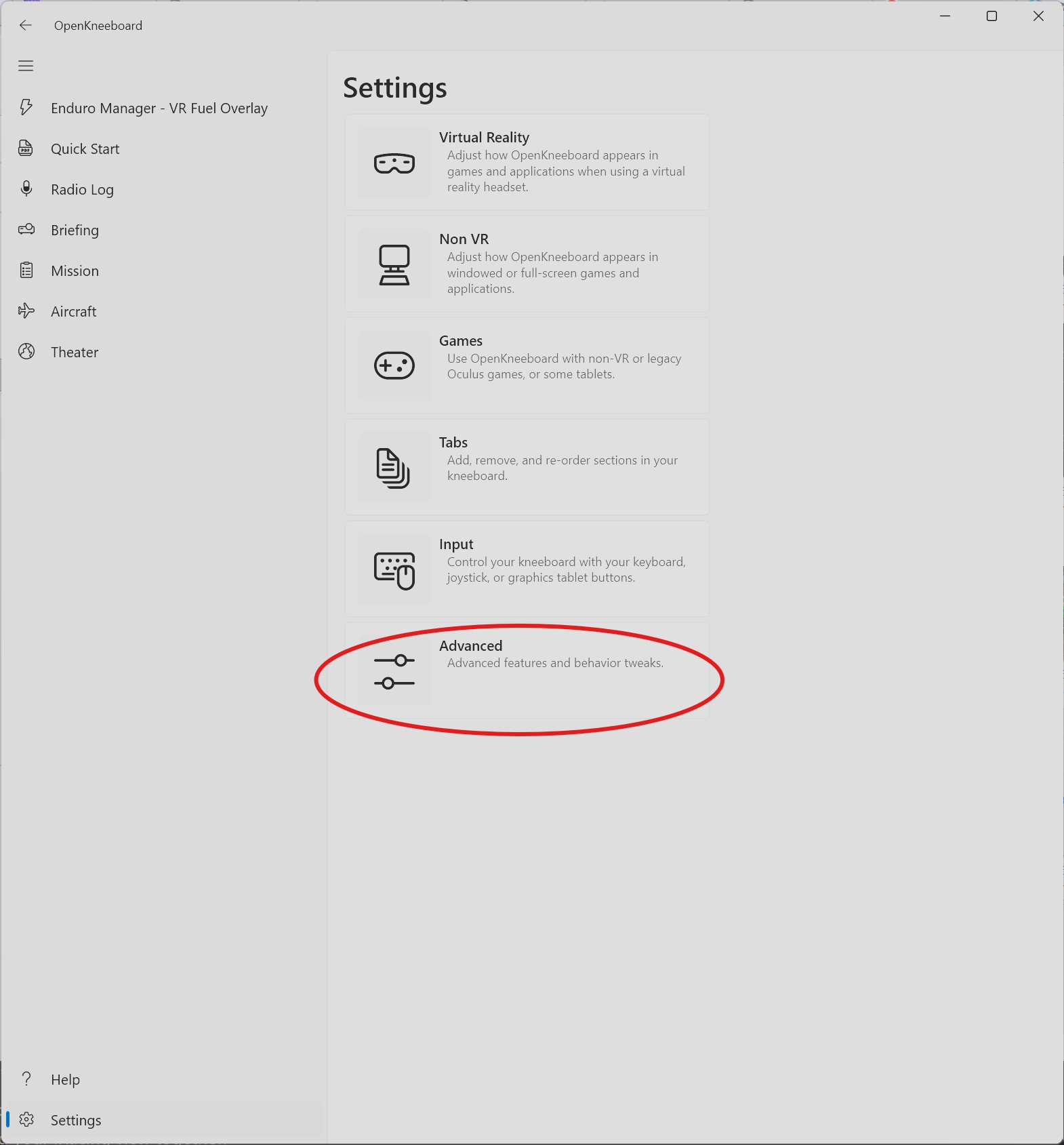
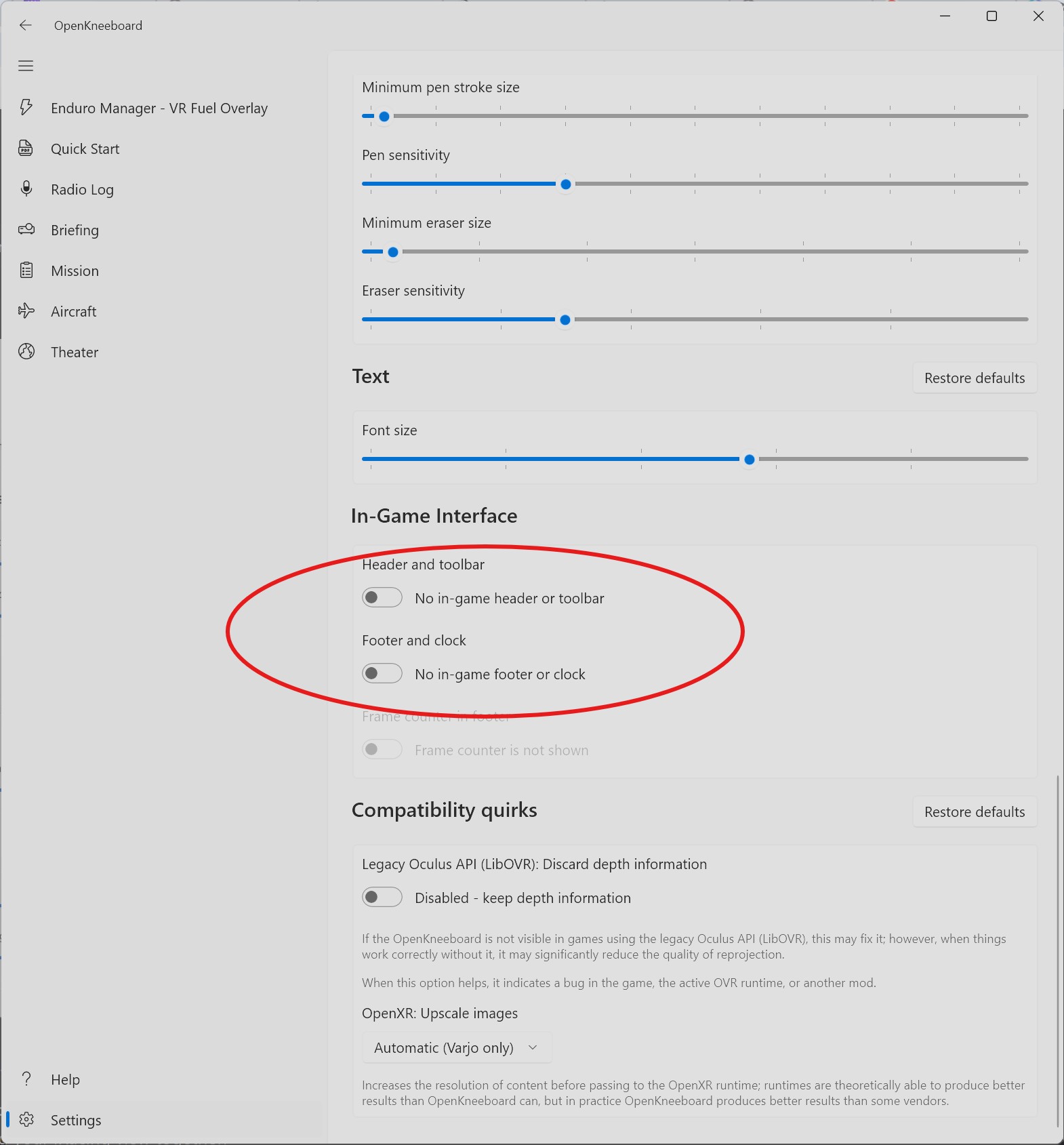
(Optional) Hide OpenKneeboard's header and footer
Open Settings → Advanced:
Scroll down to In-Game Interface and turn off both toggles
Step 4
Adjust the overlay's size and position
Adjust the overlay's size, then place it where you want to see it. Make sure to have your headset on and be in VR to see how those settings impact the size and position of the overlay.
1
Open Settings → Virtual Reality
Open Settings at the bottom-left, then open the Virtual Reality card.
2
Adjust the overlay size
Under Views → Kneeboard 1, set the width / height limits. 0.50m is a good default — increase or decrease to make the overlay larger or smaller.
3
Position the kneeboard plane in VR
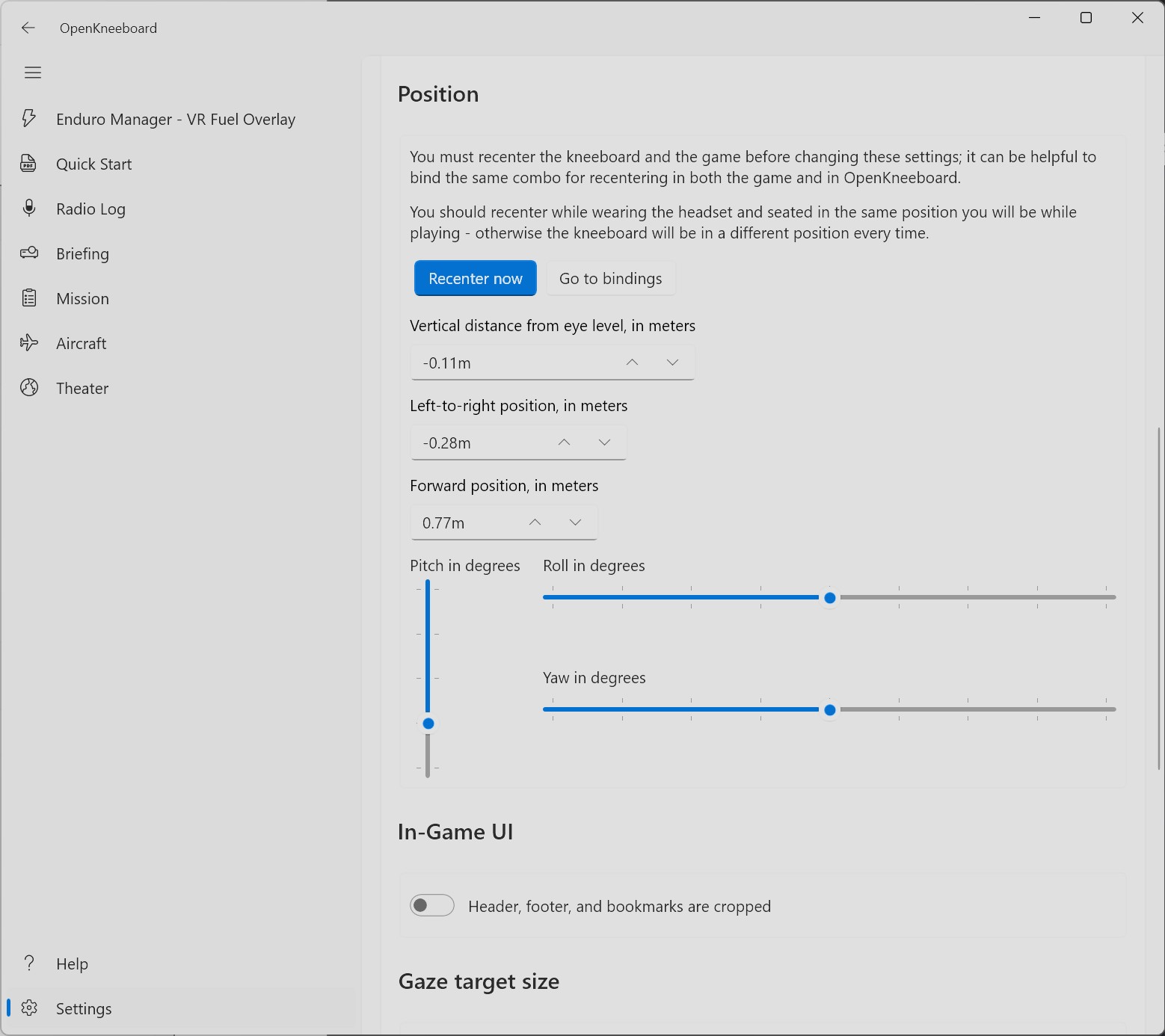
Put on your headset, jump into iRacing, and seat yourself in the car. Then in OpenKneeboard's Position section, click Recenter now.
Then adjust the settings to place the overlay according to your preferences:
Recommended values: Pitch: 90 degrees ; Roll: 0 degrees ; Yaw: 0 degrees.
Example of positioning — top-left of your view: Forward position 0.77m (approximately at your windshield or dashboard); Left-to-right position -0.28m (slightly to your left); Vertical distance from eye level -0.11m (slightly above you).
4
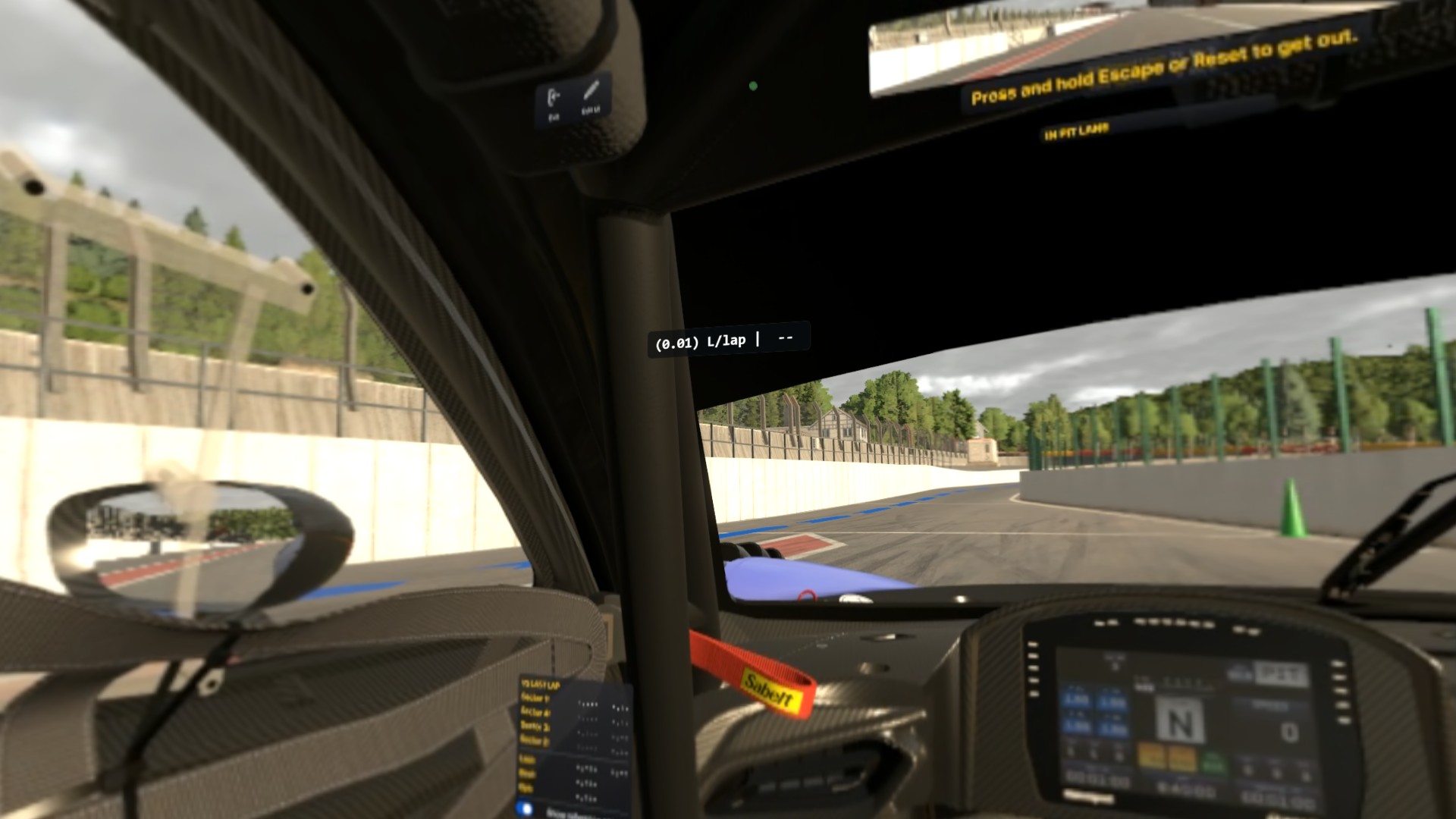
Check the overlay in iRacing
The Enduro Manager fuel overlay should appear floating where you positioned it — Example below with a top-left palcement.
That's it
- You only need to do this setup once, then you are good to go.
- You can go back to step 4 anytime to change the size and position of the overlay.
Good to know
- OpenKneeboard must be started for the VR overlay to be visible. If you closed it or restarted your computer, you must start OpenKneeboard again.
- Enduro Manager must be started for the VR overlay to be visible. Enduro Manager has a "Launch Enduro Manager on Windows startup" option in Account > Preferences that you can enable.